
EMAIL SUPPORT
dclessons@dclessons.comLOCATION
USLAB Deploy Cisco SD-WAN Devices Using Configuration Group
Task :
-
Create and configure configuration groups for WAN Edge routers.
-
Define feature profiles and populate template variables.
-
Associate WAN Edge routers to configuration groups.
Topology :
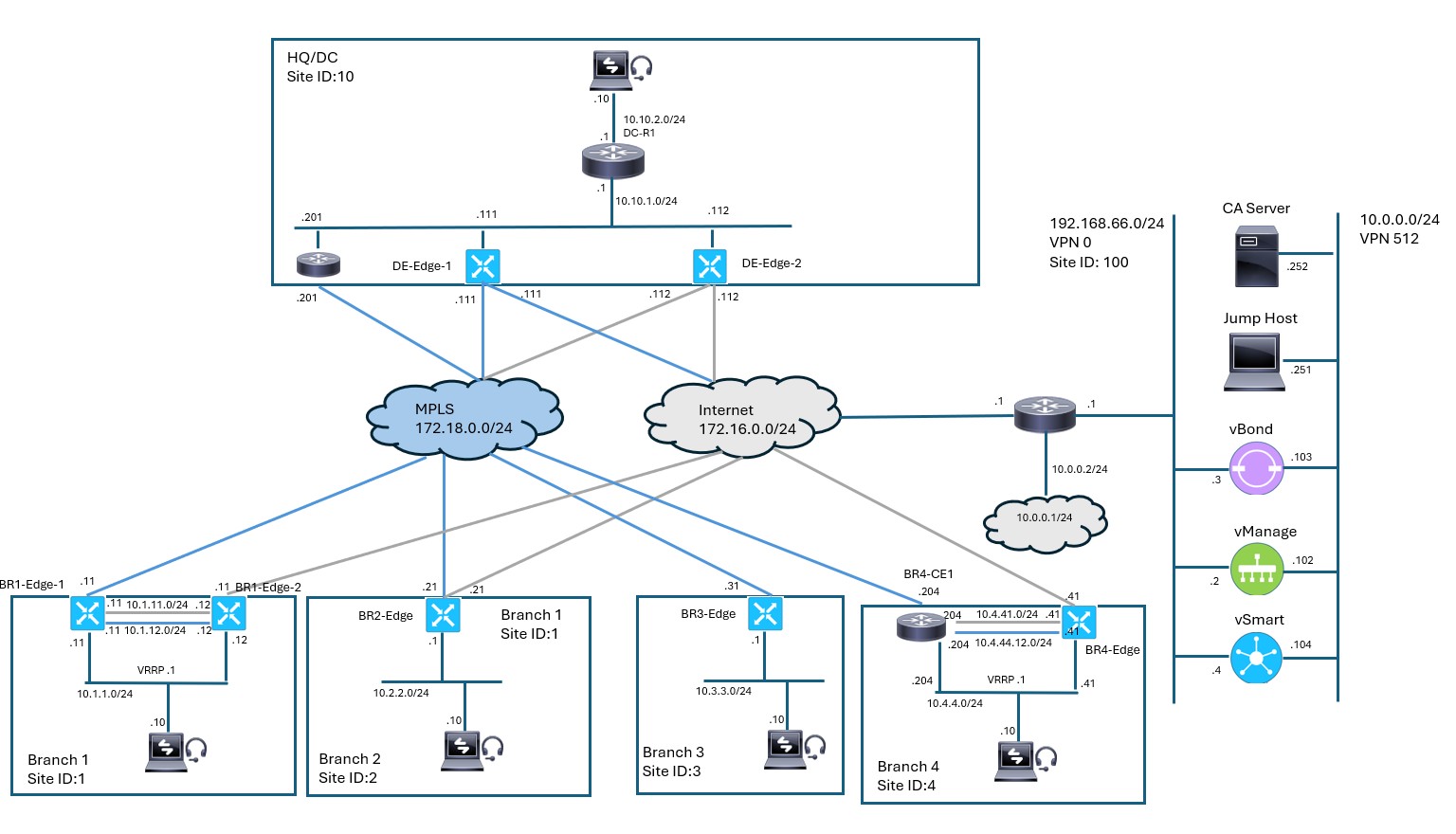
Solution:
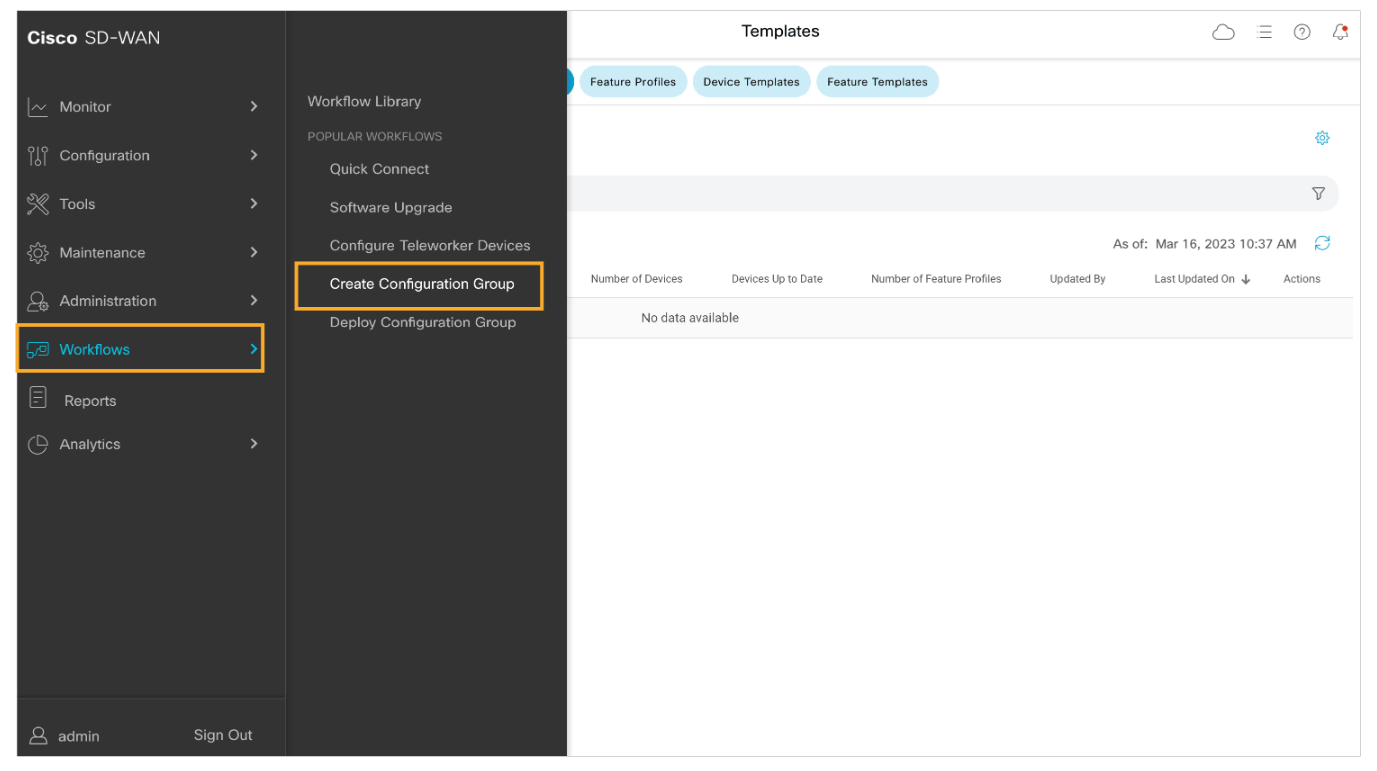
Step1: From the main menu, navigate to Workflows and choose the Create Configuration Group workflow.
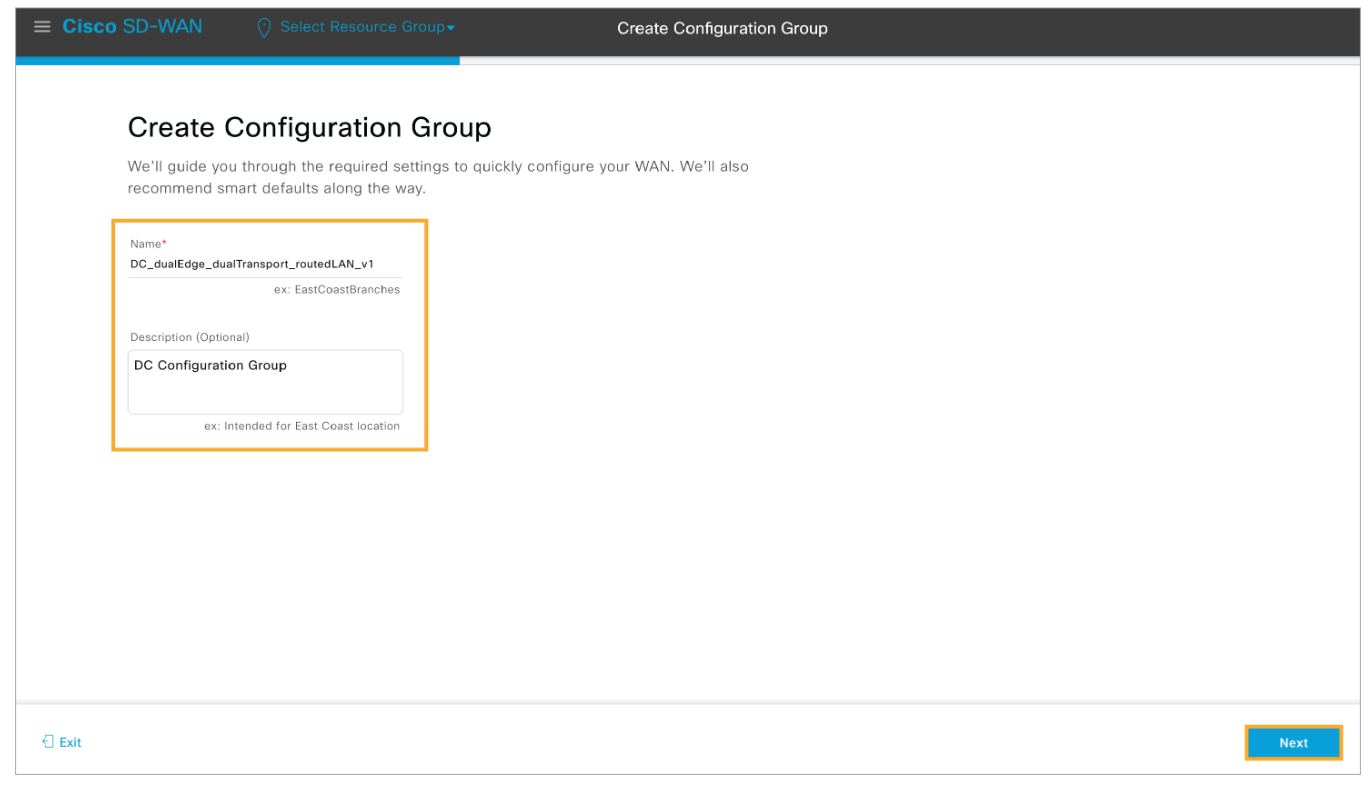
Step 2: Provide the following Name and Description and click Next to proceed:
Name: DC_dualEdge_dualTransport_routedLAN_v1
Description: DC Configuration Group
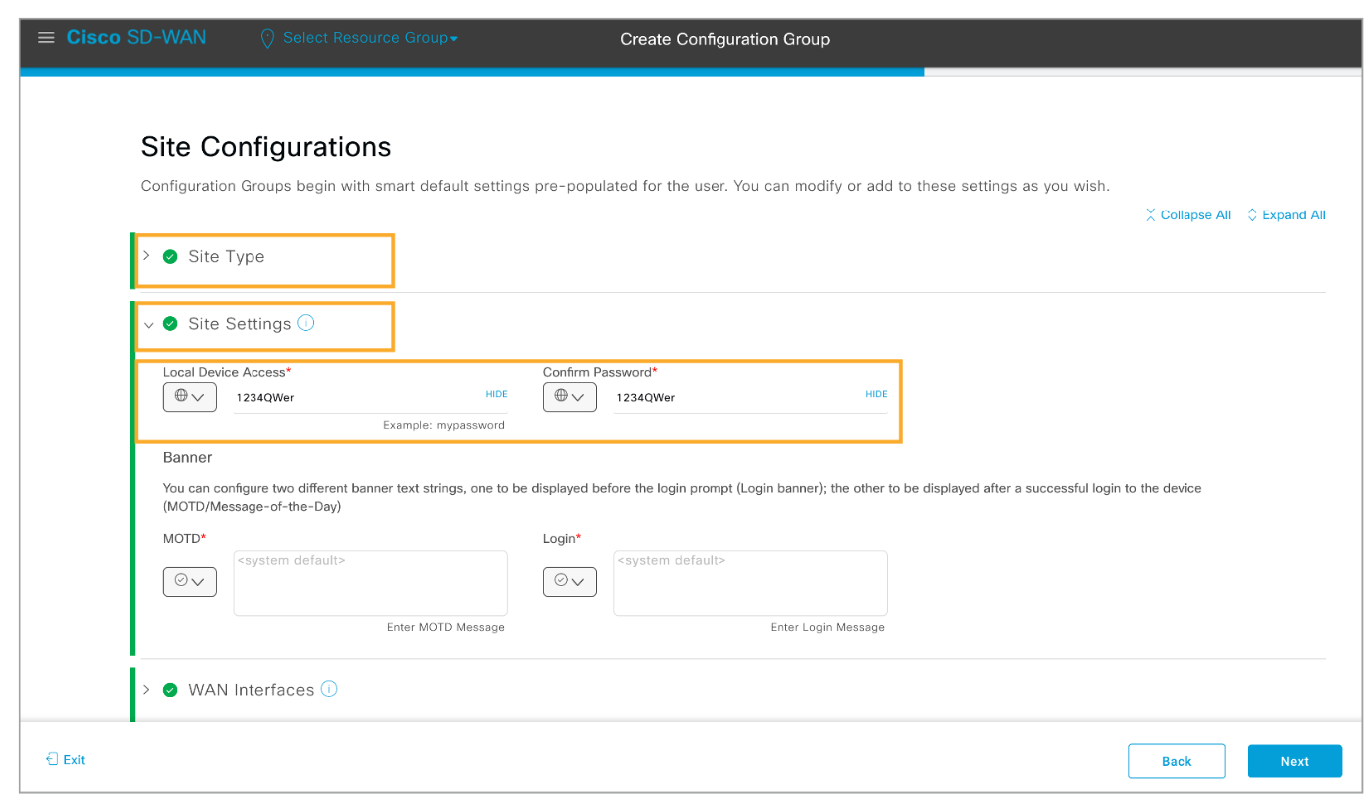
Step 3: Collapse the Site Type and expand the Site Settings section. Set the Local Device Access parameter as a Global value and enter the XXXXX password and confirm it.
Step 4: Configure the MPLS WAN interface with the following settings:
-
Interface Type: Static
-
Transport name: MPLS
-
Interface Color: mpls
-
Show Advanced: Yes
-
Interface Name (Global): GigabitEthernet2
-
IP Address (Device Specific): vpn_0_mpls_if_ip
-
Subnet (Global): 255.255.255.0
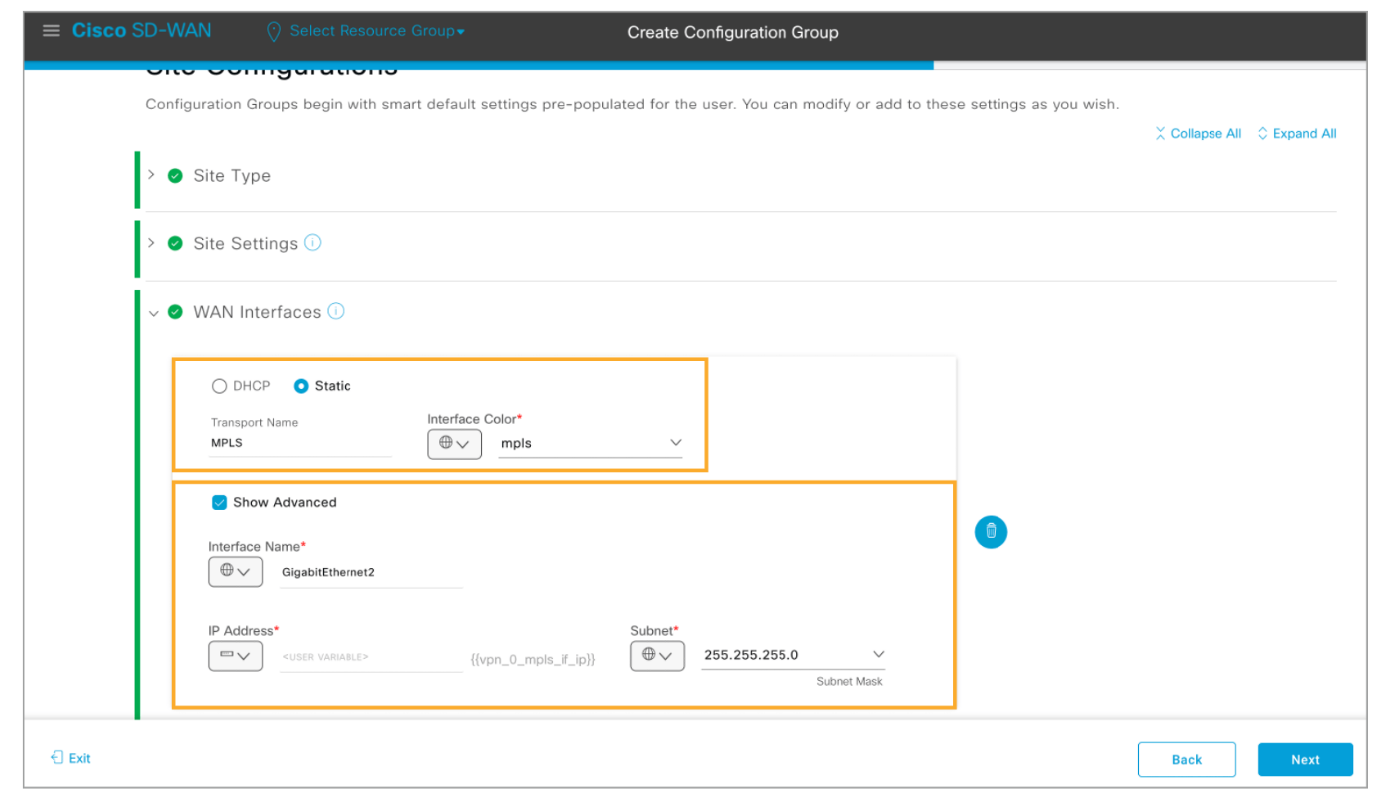
Step 5: Scroll down to the next WAN interface and configure the internet WAN interface as follows:
-
Interface Type: Static
-
Transport name: internet
-
Interface Color: biz-internet
-
Show Advanced: Yes
-
Interface Name (Global): GigabitEthernet3
-
IP Address (Device Specific): vpn_0_biz-internet_if_ip
-
Subnet (Global): 255.255.255.0
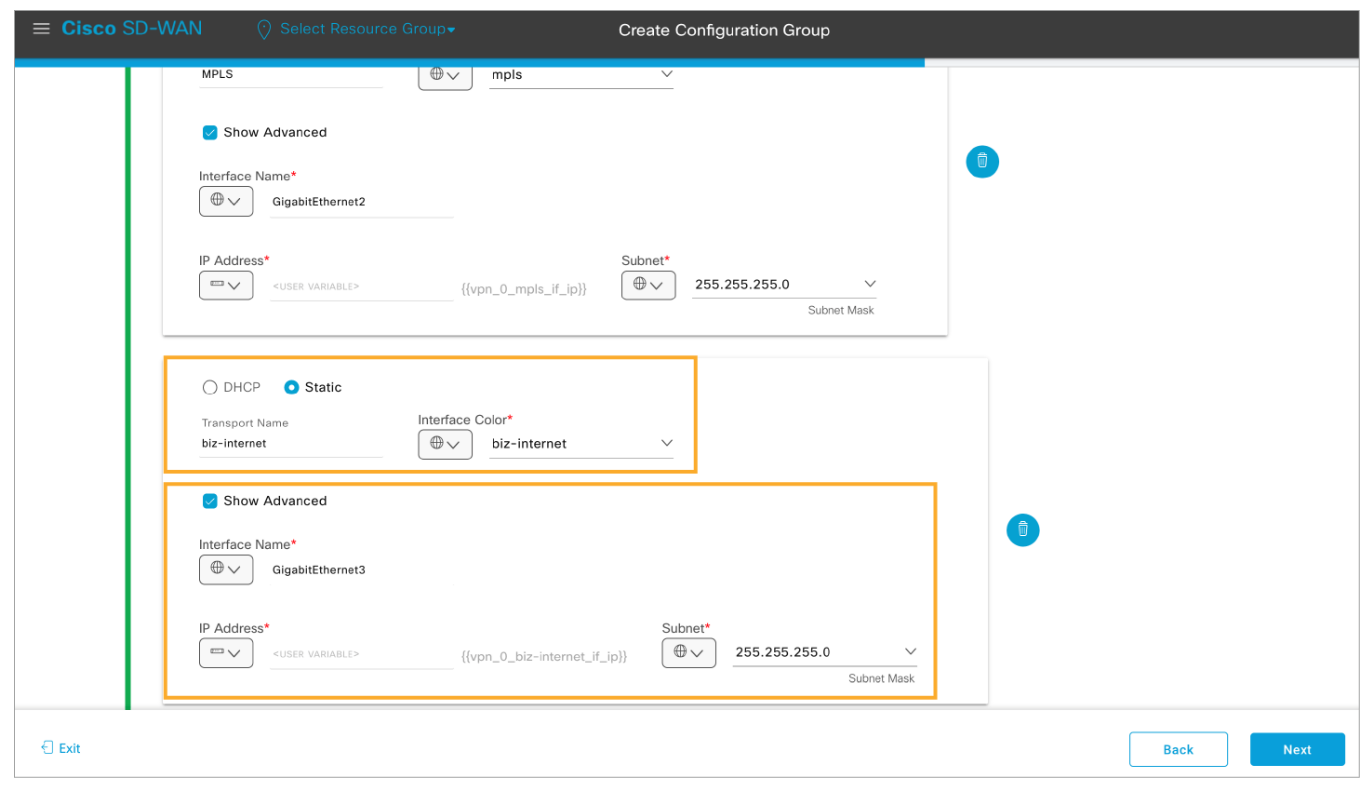
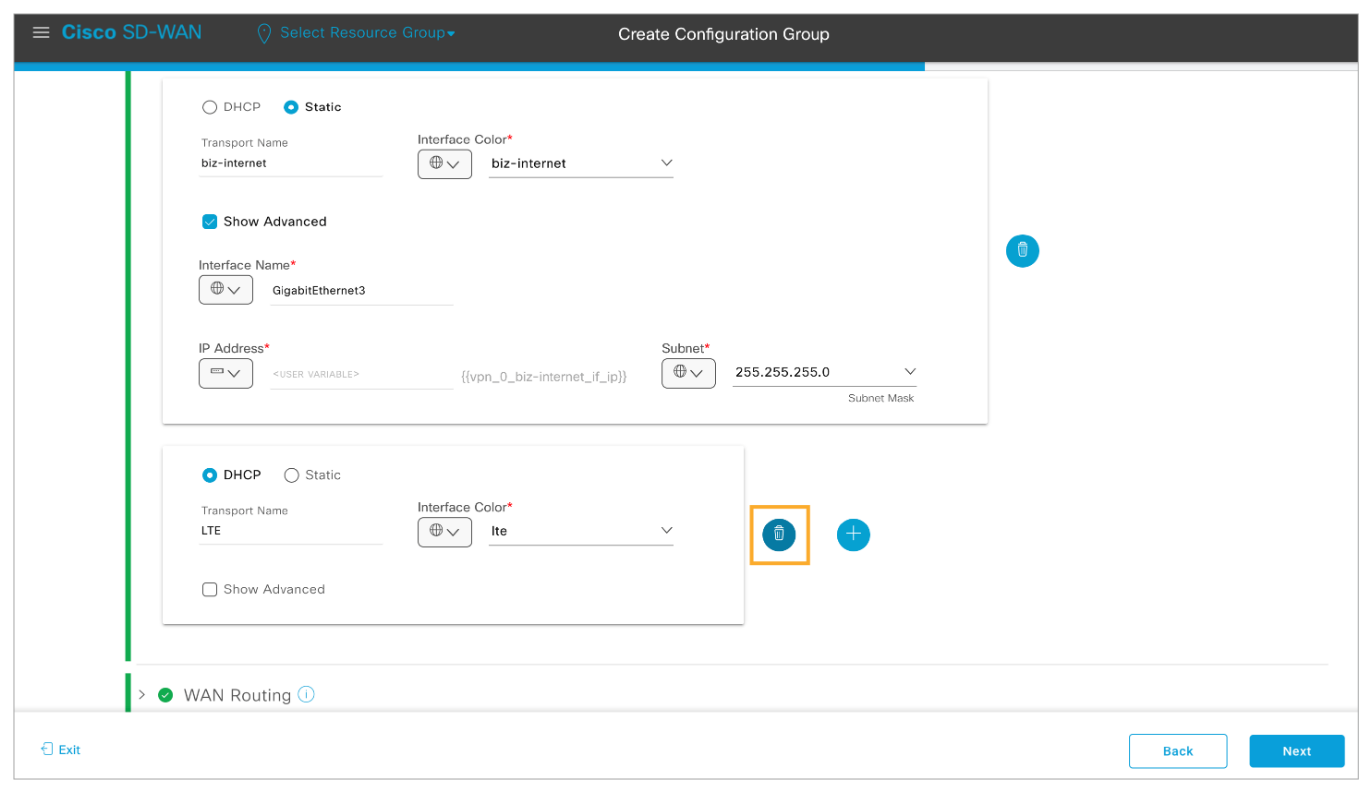
Step 6: Scroll down and remove any other WAN interfaces. Use the trash can icon to delete an interface.
Step 7: Scroll down and expand the WAN Routing section. Click Add Routing and choose Static IPv4. Configure a default route with 0.0.0.0 as the Network Address and Subnet Mask.
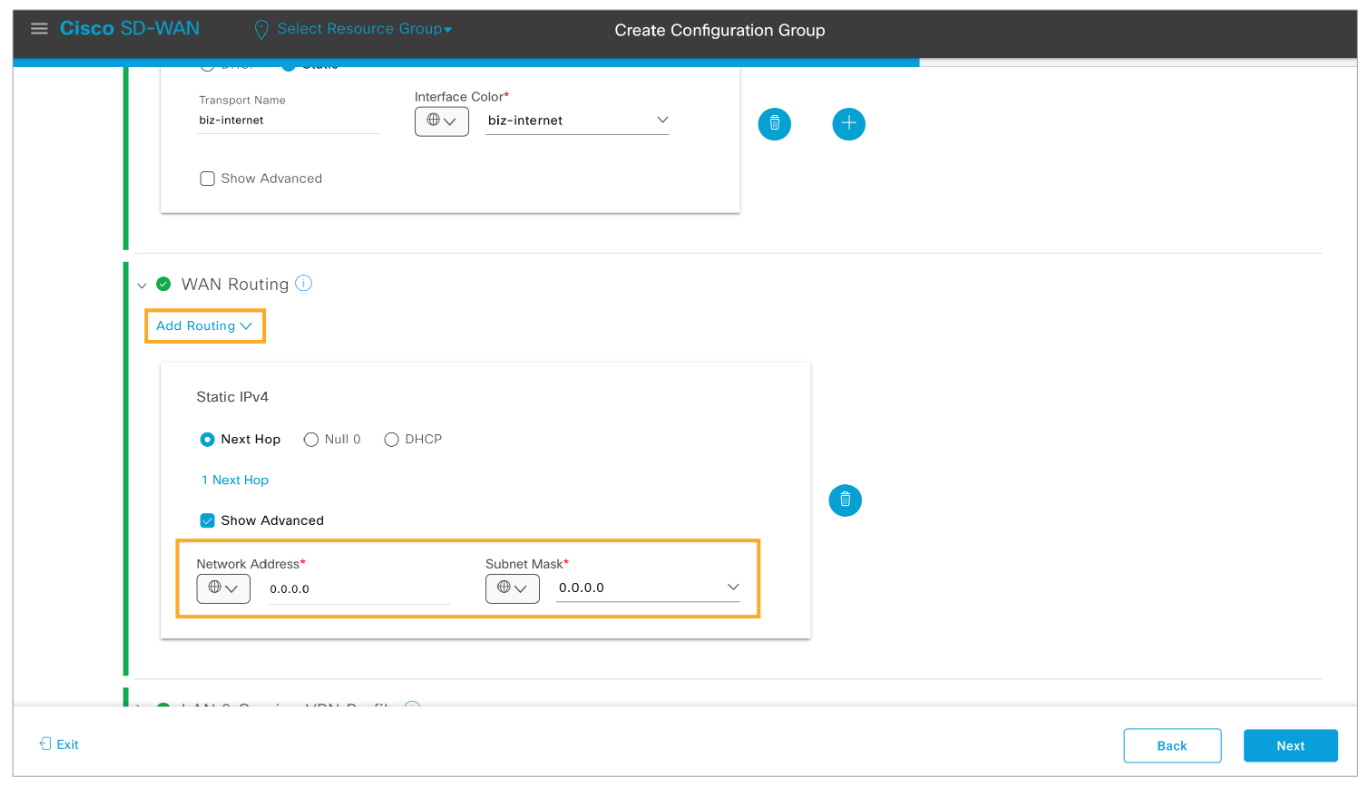
Click 1 Next Hop and add two next hops, one for the MPLS and the other for the internet transport as global values. Click Save to submit changes.
Step 8: Scroll down and expand the LAN and Service VPN Profile section. Configure two Service VPNs as follows:
-
Segment Name (Global): Corporate
-
VPN (Global): 10
-
Number of Interfaces: 1
-
Segment Name (Global): Contractor
-
VPN (Global): 20
-
Number of Interfaces: 1
Remove any other Service VPNs from the profile and click Next to proceed.
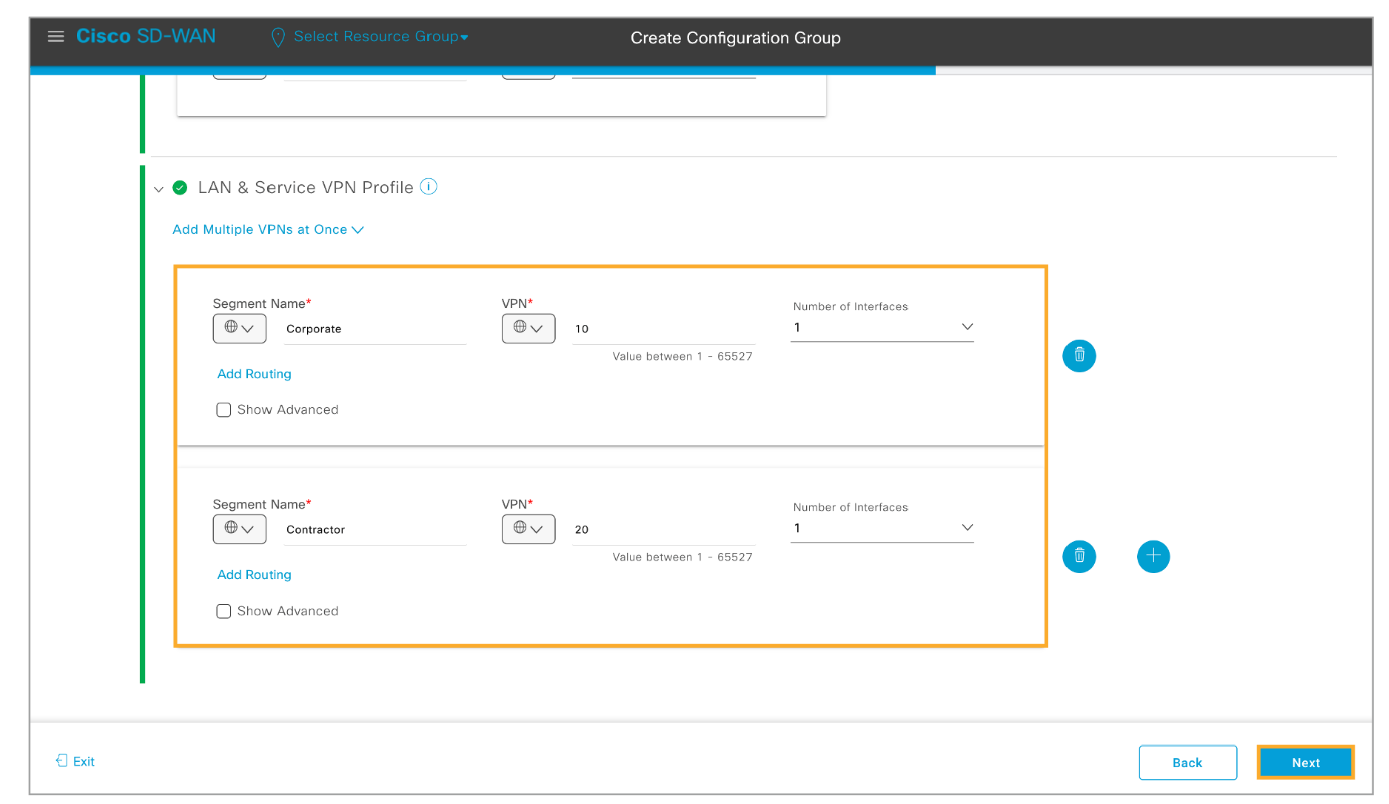
Review the configuration group summary and click Create Configuration Group to commit your work.
When the configuration group is created, you will be asked to associate devices. Click No, I will Do It Later. Then click Go to Configuration Groups to view the created configuration group.
Verify that the DC_dualEdge_dualTransport_routedLAN_v1 configuration group is created.
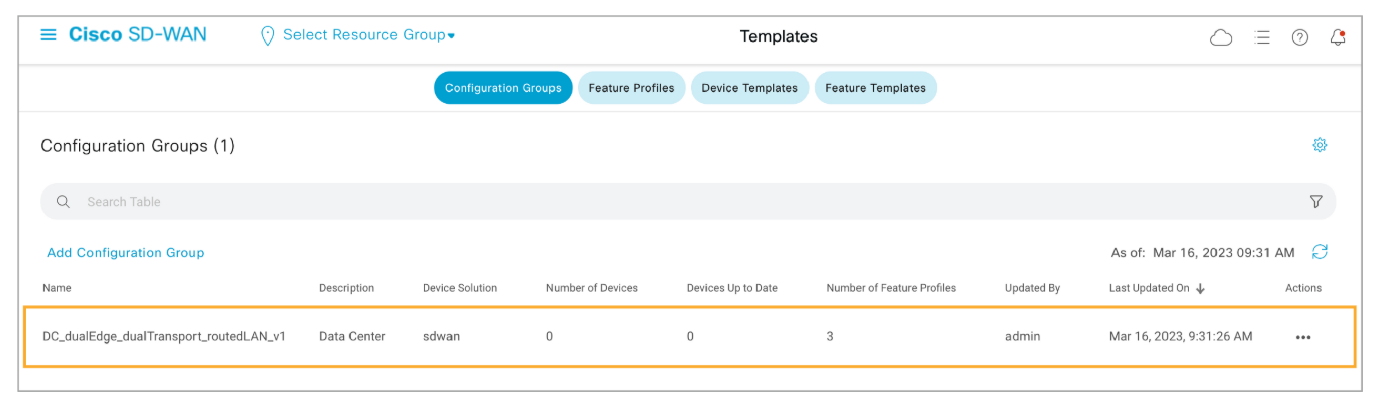
Step 9: Start the Create Configuration Group workflow once more to create a configuration group for the Branch 1 site.
From the main menu, choose Workflows > Create Configuration Group.
Provide the following Name and Description and click Next to proceed:
-
Name: Branch_dualEdge_singleTransport_bridgedLAN_v1
-
Description: Branch 1 Configuration Group
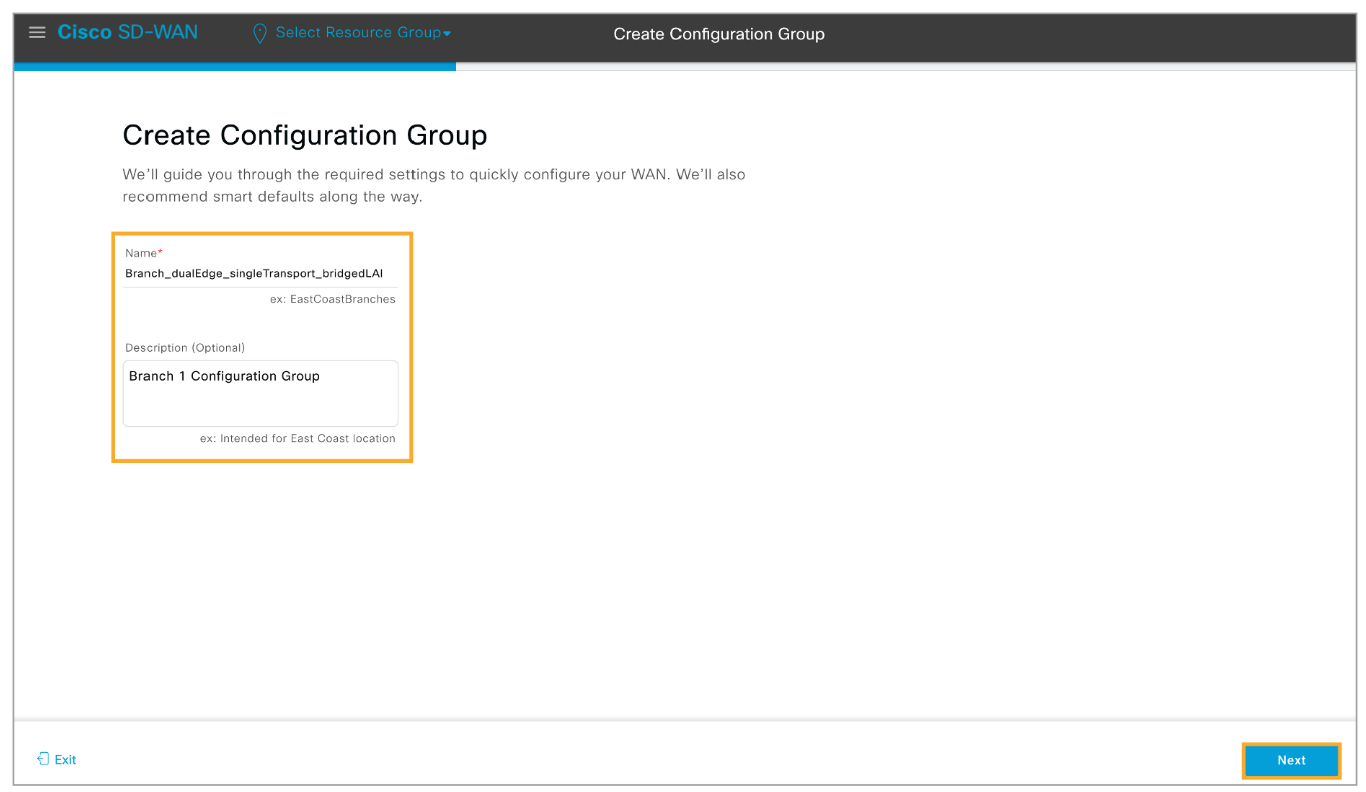
Collapse the Site Type and expand the Site Settings section. Set the Local Device Access parameter as a Global value and enter the XXXXX password.

Comment
TABLE OF CONTENTS
- Onboarding & Provisioning Configuring Templates
- Authentication between vSmart & vBond
- Authentication between vSmart Controller
- Authentication between vBond & vEdge Router
- Authentication between vEdge Router & vManage NMS
- Authentication between vSmart Controller & vEdge Router
- Viptela Specific Port Terminology
- Deploy & Configure vManage & Generate Certificate
- Deploy & Configure vBond & Generate Certificate
- Deploy & Configure vSmart & Generate Certificate
- Configure vEdge & Generate Certificate
- SDWAN & NAT
- Secure DataPlane Bringup
- Enterprise CA for SDWAN Instances
- ZTP Process & PnP Overview
- Control Plane & Data Plane Operation - Unicast Routing Overview
- Configuring OMP & Its attributes
- Configure Unicast Overlay Routing
- Routing Configuration Example
- Segmentation Overview
- Configuring Segmentation
- Segmentation Configuration Example
- Data Traffic across Private WANs
- NAT in SDWAN & Data Encryption
- SD-WAN Viptela Policy Overview
- SD-WAN Centralized & Localized Control Policy Overview
- SD-WAN Centralized & Localized Data Policy
- Service Chaining
- Traffic Flow Monitoring
- vEdge Router as NAT Device
- Zone Based Firewalls
- Configure Centralized Control Policy
- Configuring Centralized Data Policy
- Configuring Cflowd Traffic Monitoring
- Configuring Zone based Firewall
- Service Chaining Configuration Example
- Configuring Service Side NAT
- Configuring Transport side NAT
- Control Policy Example 1: Hierarchical Topology
- Multi-Region Fabric
- Control Policy Example 2: Implementing Traffic Engineering
- Control Policy Example 2: Dynamic On-Demand Tunnels
- LAB Deploy Cisco SD-WAN Edge Routers
- LAB Deploy SDWAN Controllers
- LAB Deploy Cisco SD-WAN Devices Using Configuration Group
- LAB Implement Service-Side Routing Protocols
- LAB Implement TLOC Extensions
- LAB Implement Control Policies
- LAB Implement Data Policies
- LAB Implement Application-Aware Routing
- LAB Implement Branch and Regional Internet Breakouts
- LAB Migrate Branch Sites
RECENT POSTS
- Installing Context-Aware Network Access Control using Cisco ISE Policies
- Designing Network Access Control that is Scalable using Cisco ISE Architecture
- Enterprise Network Access Control and Policy Enforcement using Cisco ISE
- Secure Device Administration and Network Access Using AAA Architecture
- Designing Enterprise-Class Hybrid Cloud Connectivity Using AWS Networking Services
- Exploring Core AWS Networking and Messaging Concepts for Modern Cloud Architectures
- Understanding Key AWS Services for Modern Cloud Architectures
- Building a Strong AWS Foundation with Amazon S3, EC2, and Virtual Private Cloud
- Understanding the ENSDWI Course: Advanced Cisco SD-WAN (Viptela) Concepts
- A Complete Guide to the DCACI-A Course: Mastering Advanced Cisco ACI Concepts



LEAVE A COMMENT
Please login here to comment.